
Speakers that stay readable
Detects [Name], Name:, and WebVTT <v Name> tags. Consecutive cues from the same speaker merge into paragraphs.
Paste SRT, VTT, ASS, or Zoom. Download Word in this browser.
1 file free · Pro $4.99 one-time
Unlimited exports. Pay once.
Card, Apple Pay or Google Pay · No subscription
Honest before/after: numbered SRT/VTT cues become real paragraphs with speakers — timestamps optional, nothing faked as product metrics.
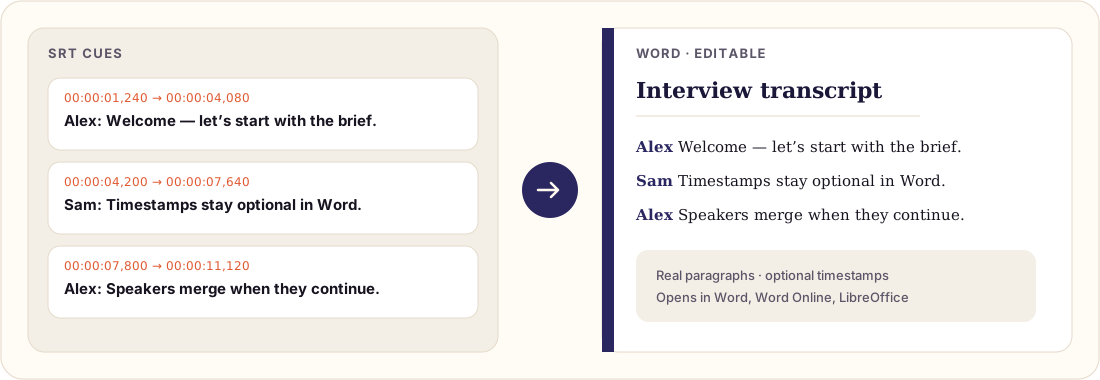
“SRT to Word” results are mostly upload converters. People still bounce when the page never answers: timestamps on or off, speakers vs raw cues, whether opening SRT in Word is enough, and whether the file leaves the device. Here is the complete job on one page.
Toggle Show timestamps in the converter; the live preview updates before you download.
We read [Name], Name:, and WebVTT <v Name> tags. Consecutive cues
from the same speaker become paragraphs — the difference between a caption export and a usable transcript.
Word opens SRT as plain text. You still strip cue numbers and --> lines by hand. Use the
converter for anything longer than a smoke test — details in
how to convert SRT to Word.
Parsing and .docx generation run in your browser. Captions are not uploaded to convert.
One file is free forever. A folder of files is the unlock on the pricing card. It does not renew.
Same engine, different jobs: VTT to DOCX · SRT to Word with timecode or without · ASS to Word · Zoom transcript to Word · step-by-step guide. Caption files that are not Word yet: LRC to SRT · SRT to TXT · VTT to SRT · ASS to SRT · SMI to SRT · SUB to SRT · create an SRT. A PDF of one reading preview is SRT to PDF. Several caption files into one SRT is merge subtitles. The lyric file and the subtitle file are not the same format: LRC vs SRT. Workflow write-ups — Whisper cleanup, bilingual columns, YouTube Studio, CapCut, Descript, Otter, Teams, Netflix QC, batch ZIP, DOCX versus PDF — are collected on subtitle to Word guides. Paragraphs with the clocks left out are SRT to text. Which export to drop from a meeting or a caption tool is transcript to Word. The cue layout itself is what an SRT file is.
Built for real subtitle files and meeting transcripts — not a flattened plain-text dump.
Detects [Name], Name:, and WebVTT <v Name> tags. Consecutive cues from the same speaker merge into paragraphs.
Keep time codes for editors, or hide them for a clean reading script. Toggle updates the live preview instantly.
SubRip, WebVTT (including voice tags), ASS/SSA dialogue events, and common Zoom plain transcripts parse in the browser — no upload.
Clipboard HTML of the live preview, standalone HTML download, and print-to-PDF — plus .srt/.vtt/.ass drag-drop and local draft autosave. Nothing uploaded for conversion.
One transcript stays free, in this browser, with nothing uploaded to convert. Pro adds batch ZIP and header/footer only.
$4.99
Card, Apple Pay or Google Pay · No subscription
Checking payment availability…
Short answers about privacy, formats, and Pro.
Yes. One file — SRT, VTT, ASS, or a Zoom transcript — converts to Word forever. No account. Parsing and the .docx stay in your browser; captions are not uploaded to convert. Pro is batch ZIP plus header and footer.
Pro adds batch ZIP (many .srt/.vtt/.ass/.ssa files → one ZIP of .docx) and header/footer text on downloads. It does not renew. One file stays on the free converter. The amount is the single deal line under the converter. Restore with the checkout email on /restore if you switch browsers.
No. Parsing and .docx generation run entirely in your browser. Your captions never leave your device for conversion. See the Privacy Policy.
Standard SubRip (.srt), WebVTT (.vtt) including <v Speaker> voice tags, ASS / SSA dialogue events (.ass / .ssa), and common Zoom plain-text transcripts with speaker + timecode blocks. Complex karaoke, drawings, and font effects flatten to plain timed text.
Yes. Consecutive cues from the same speaker merge into readable paragraphs. Use the timestamp toggle when you want a clean reading script without time codes.
Yes. Downloads are standard .docx files that open in Word, Word Online, Google Docs, and LibreOffice.
From a Zoom cloud recording, download the VTT/SRT transcript (or copy the meeting transcript text), then paste or upload it here and click Download .docx.
No. One file stays free forever. Batch ZIP is Pro, for a folder of subtitle files, together with header and footer text.
Yes. Use Copy formatted to put the live preview HTML + plain text on the clipboard, then paste into Word or Google Docs. Download .docx when you want a real Word file with styles.
Yes — SRT is plain text — but you still see cue numbers, timing arrows, and broken sentences. SRT2Word removes that cleanup and writes readable paragraphs with optional timestamps and speakers.
Keep them for translation review, QA, and matching lines back to the video. Hide them for clean reading scripts, meeting minutes, and client-facing prose. Toggle Show timestamps before download.
Yes. HTML downloads a clean standalone .html of the rendered transcript on your device. PDF opens the system print dialog so you can Save as PDF. Both stay private and local — same as Download .docx.